A Compatible Fire TV Device
Check your Fire OS version from My Fire TV > About. Most modern Fire TV Sticks, Firestick 4K, 4K Max and Fire TV Cube models can run IPTV players.
Step-by-step Fire TV installation guide, updated for 2026. Learn how IPTV works on Firestick, how to prepare your device, choose the right player, install compatible apps and troubleshoot common setup problems.
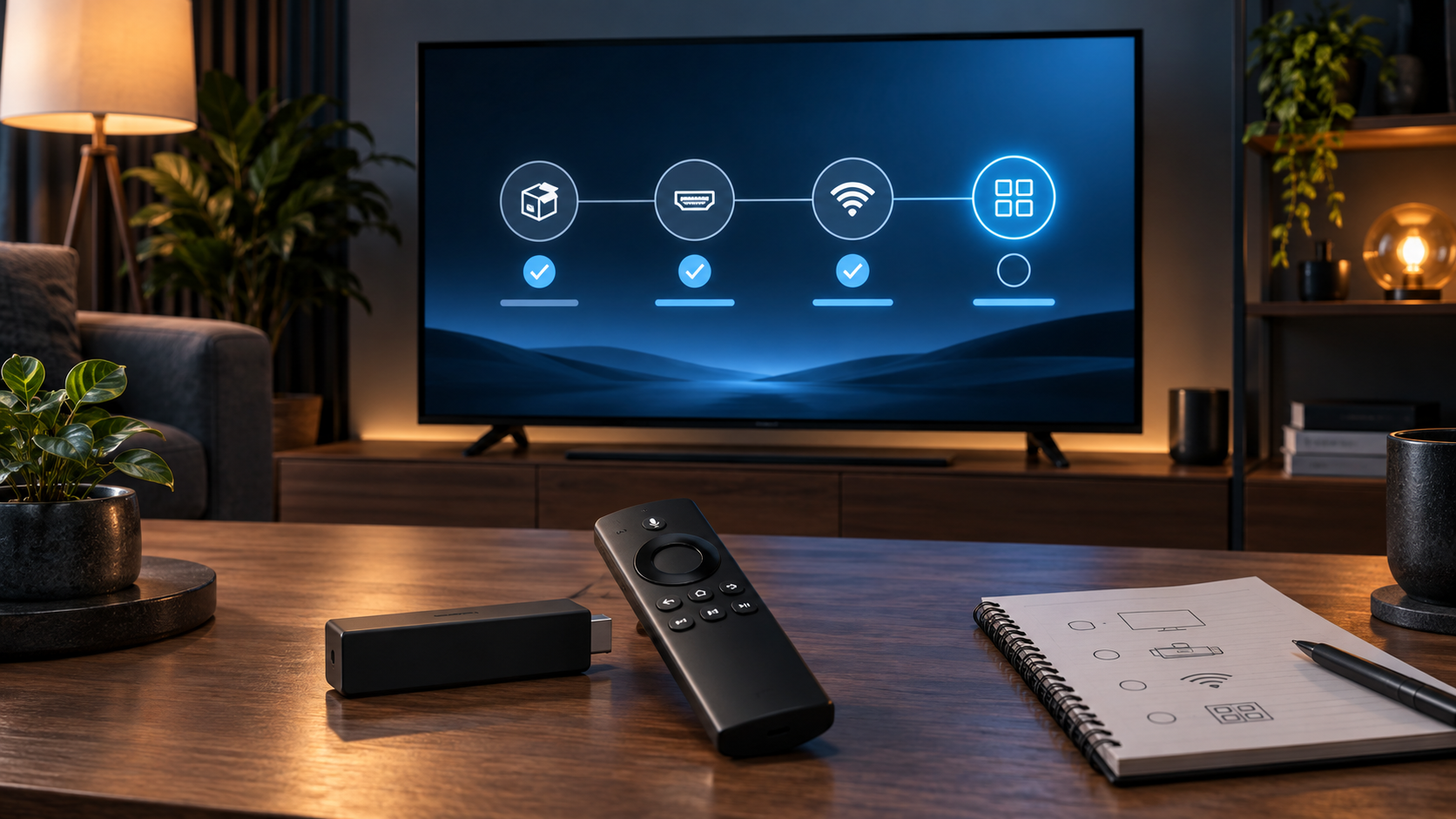
Preparing these first avoids most installation and login problems.
Check your Fire OS version from My Fire TV > About. Most modern Fire TV Sticks, Firestick 4K, 4K Max and Fire TV Cube models can run IPTV players.
The interface for organising your account or playlist matters. Popular choices include IPTV Smarters Pro, TiviMate, XCIPTV, Sparkle TV and OTT Navigator.
Depending on the service, you may need a username, password, M3U URL, EPG URL, Xtream Codes API or activation details.
Remove unused apps if storage is low, use a strong Wi-Fi or Ethernet connection and avoid overloaded Firestick storage.
Start with official app routes where possible. If the player is unavailable on the app store, use Downloader only when required and verified.
Pick one that supports your Firestick and your service login or playlist format.
If the player is available there, install it from the Appstore before trying alternative installation methods.
If unavailable in the Appstore and you choose a supported route, use a verified URL or current code from a trusted source.
Enter the server URL, username, password, M3U link or Xtream Codes details exactly as supplied.
Refresh EPG, categories and VOD sections. Larger playlists may take a few minutes to populate.
Open several live channels and on-demand titles before changing advanced settings.
This page is primarily an installation guide, so treat this table as a quick reference. Codes can change; use the Downloader page for the latest checked codes.
| IPTV player | Current code listed on our site | Dedicated guide |
|---|---|---|
| IPTV Smarters Pro | 6468112 | Smarters code guide |
| TiviMate | 272483 | TiviMate guide |
| XCIPTV | 730116 | XCIPTV guide |
| IBO Player | 923441 | Verify destination before installation |
| B1G Player | 5637737 | B1G guide |
| Sky Glass IPTV | 5293334 | Sky Glass IPTV guide |
For current code verification, visit our Downloader Codes for Firestick page.
Amazon has introduced Vega OS on newer Fire TV hardware. Older Android-based guides may not apply to every current Fire TV device. Check your device model before following any sideloading route, and avoid tutorials that assume every Firestick behaves the same way.
If your IPTV player is available in the Fire TV app catalogue, that is the simplest route. Install the app, open it and use the login details provided by your IPTV service.
Some services provide an M3U playlist link. Others provide Xtream Codes style details with a server URL, username and password. Always choose the login mode that matches your service.
Check the Fire TV app catalogue first for a compatible Smarters listing. Verify the developer and device compatibility. If unavailable and your device supports an alternative route, use a verified source rather than an unknown APK site.
After installing, choose the correct login method, enter your details exactly, then allow the app to load channels, VOD and EPG information.
Check storage, compatibility, Fire OS version and whether apps from unknown sources are enabled where supported.
Confirm the code or URL, check storage and ensure the destination is compatible with your device.
Login details may be wrong, expired or missing the correct server URL.
Refresh the guide, check the EPG source and allow larger guides time to sync.
Test Wi-Fi speed, restart the Firestick, clear cache and avoid overloading older devices.
Restart the device, update the player, clear cache, free storage and consider a different compatible player.
Performance is not only about the app. Internet speed, device storage, playlist size and Firestick age all affect playback. Keep your device clean, restart it occasionally and avoid running too many background apps.
The player is just the interface. A subscription or playlist supplies the channels and content. Use only services and playlists you are authorised to access in your region.
Legality matters. This guide is for setup and troubleshooting. It does not endorse unauthorised streams or access to copyrighted content without permission.
Choose a compatible IPTV player, install it from a trusted route, then add your valid account or playlist details.
Yes, if the IPTV player is available through an official app catalogue or another supported route.
IPTV Smarters Pro, TiviMate, XCIPTV, Sparkle TV and OTT Navigator are common choices. The best one depends on your login format and interface preference.
Yes, if your chosen player is compatible with your device and Fire OS version.
Common causes include low storage, incompatible app version, unsupported OS, or using an untrusted installer.
Yes, but keeping too many apps on a low-storage Firestick can slow performance.
You can install a player first, but you need valid account or playlist details to load content.
Identify your Fire TV device and OS, choose a compatible IPTV player, install it through a supported route, enter your valid account or playlist details, refresh the EPG and test playback. If something fails, check storage, network, login details and device compatibility first.
Get setup help on WhatsApp