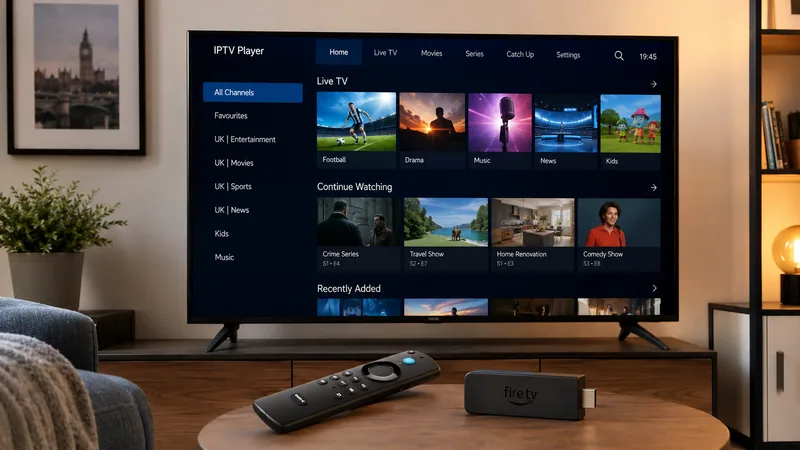
For a clean Firestick setup, connect the device with reliable power, install a trusted player, add authorised account details, then organise favourites and the programme guide. Confirm 4K capability at every stage: source, player, Firestick, HDMI path and television.
- Best for
- Living-room Fire TV setup
- Setup time
- About 20–40 minutes
- Key choice
- Remote-friendly player
- Reviewed
- 28 September 2026
Build the setup in the right order
- Connect and update. Use the supplied power adaptor, choose the correct HDMI input and install Fire OS updates.
- Check the display. Set a resolution your television supports and leave dynamic range on an appropriate automatic setting initially.
- Install the player. Search the Amazon Appstore first. If it is unavailable, use only a verified developer route.
- Add authorised details. Enter the exact URL or credentials without added spaces.
- Wait for the first sync. Large playlists and EPG data may take time; avoid repeatedly force-closing the app.
- Test before customising. Check live playback, on-demand playback, audio and programme data.
What “4K on Firestick” really requires
Every link must support the intended format. A 4K stream needs a 4K source, a compatible player and codec, a 4K-capable Fire TV model, a suitable HDMI connection and a 4K television. If any part falls back to HD, the result is HD. Resolution also says nothing about compression quality: a heavily compressed 4K label may look worse than a clean HD stream.
| Check | Where to look |
|---|---|
| Fire TV model | Settings → My Fire TV → About |
| Output resolution | Settings → Display & Sounds → Display |
| TV HDMI capability | Television manual and HDMI input settings |
| Stream resolution | Player information panel, where available |
Make the remote control experience better
A television interface should be usable from three metres away. Put the most-used categories first, create a short favourites list and hide groups nobody watches. Choose a grid density that keeps programme titles readable. Avoid assigning unfamiliar shortcuts until everyone in the home can get back to live TV.
- Pin the player to the Fire TV app row.
- Use favourites instead of scrolling through hundreds of entries.
- Set a sensible default channel or start screen.
- Use parental controls for categories that need them.
EPG, catch-up and multiple connections
An electronic programme guide is separate data matched to channel identifiers. Missing guide entries can be caused by the service, the playlist mapping, time-zone settings or a failed refresh. Catch-up also depends on the service retaining programmes; a clock icon in a player cannot create recordings by itself.
One account installed on two devices does not necessarily permit two devices to stream at once. Confirm the simultaneous-connection limit before testing a second television.
A stable daily routine
Use Fire TV sleep and restart normally, rather than cutting power after every session. Keep enough storage free for updates and cache. If playback changes suddenly, identify whether all apps are affected, all channels in one player are affected, or only a single stream is affected. That one observation points to the likely layer.
Frequently asked questions
Can a Firestick remote control TV volume?
Compatible Fire TV remotes can control many televisions after equipment control is configured, but support varies by model.
Why is the EPG one hour wrong?
Check the Fire TV time zone first, then the player EPG offset. Do not change both at once or the error may double.
Does a 4K Firestick improve every channel?
No. It can output 4K, but it cannot add genuine detail to a lower-quality source.
Can I use the same player on another Firestick?
Usually the app can be installed again, but premium app licensing and service connection limits have their own rules.
Sources and further reading
This guide was reviewed against current manufacturer and UK public guidance on 28 September 2026.