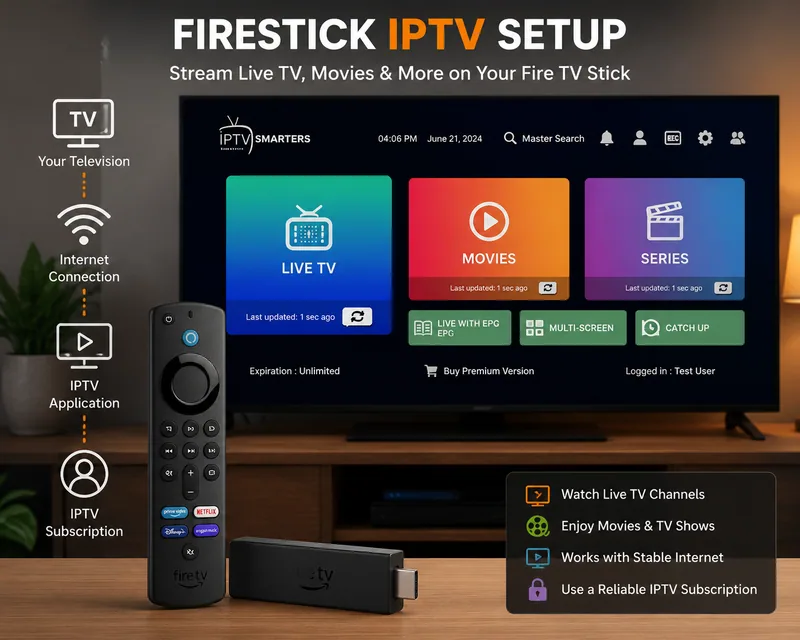
Firestick IPTV uses an Amazon Fire TV device to run a player app, then loads a legitimate TV service or playlist into that player. The device, player and content service are separate products. Check all three for compatibility before paying for anything.
- Best for
- UK beginners planning a Fire TV setup
- You need
- Fire TV, internet, player app and authorised service
- Reading time
- 8 minutes
- Reviewed
- 28 September 2026
The four parts of a Firestick IPTV setup
A reliable setup has four links in the chain. Your Fire TV device runs the software. The player app organises channels, programmes and favourites. The TV service supplies login or playlist details. Your home network carries the video. Calling all four parts “IPTV” makes faults harder to diagnose.
| Part | What it does | What it does not do |
|---|---|---|
| Firestick | Runs apps and sends video to the TV | Does not include an IPTV subscription |
| Player | Displays playlists, EPG and on-demand menus | Does not normally provide channels |
| Service | Provides authorised streams and account details | Does not fix weak Wi-Fi |
| Network | Moves data from the internet to the device | Cannot repair a failing source stream |
Choose the Fire TV device first
Confirm the exact model in Settings → My Fire TV → About. Older entry-level sticks can still handle simple apps, but large programme guides and image-heavy libraries need more headroom. A 4K-labelled stick is useful even on a 1080p television when it has a faster interface and better wireless support; it cannot turn a low-resolution source into true 4K.
Keep the supplied power adaptor connected to a wall socket where possible. A television USB port may not deliver consistent power, which can look like random restarts, freezing or app crashes.
A setup order that avoids wasted purchases
- Update Fire TV. Install pending system updates and restart the device.
- Test the network. Stream a known legal service in HD before blaming a new player.
- Choose a player. Prefer the Amazon Appstore or the verified developer source.
- Confirm the account format. Ask whether the service supplies an app login, M3U URL or another documented format.
- Start short. Test the actual channels and time periods you care about before a long commitment.
- Build favourites. Hide unused groups and organise the home screen only after playback is stable.
What UK buyers should verify
Do not compare services by channel count alone. Check the legal right to provide the content, company identity, renewal terms, privacy notice, support route, simultaneous-stream limit and refund policy. Huge claims, crypto-only payment, no business details and pressure to buy a multi-year plan are warning signs.
UK Government guidance distinguishes legitimate devices and software from use that provides unauthorised access to protected broadcasts. The important question is not whether a player exists in an app store; it is whether the content source has permission to distribute what it sells.
Plan the network for real household use
Speed-test results are only a starting point. Stability, Wi-Fi interference and what other people do at the same time also matter. Ofcom uses about 30 Mbit/s as a planning reference for one UHD stream and advises more capacity for busy households. Treat that as a household-planning figure, not a promise that every service will work at that speed.
- Place the router in the open, not behind the television or inside a cabinet.
- Use 5 GHz Wi-Fi near the router; try Ethernet for a fixed TV position.
- Keep several gigabytes of free device storage where practical.
- Test at the evening time you normally watch, not only during a quiet morning.
First-week maintenance
Leave player defaults alone until you know the baseline is stable. If one app misbehaves, restart it and clear only its cache before clearing data. Clearing data signs you out and removes local settings. Note where your legitimate account details came from so you can recover them without relying on screenshots shared in chat.
Frequently asked questions
Does a Firestick include IPTV channels?
No. A Fire TV device runs apps. A player app and an authorised content service are separate.
Do I need a 4K television?
No. A Fire TV Stick 4K can output at lower resolutions, although the television and source must both support 4K to display 4K video.
Can one account be used on several televisions?
Only if the service terms allow the number of devices and simultaneous streams you need. Device installs and simultaneous playback are not the same limit.
Is a VPN required?
Not automatically. A VPN can change routing and privacy characteristics, but it does not make unauthorised content lawful and may reduce speed.
Sources and further reading
This guide was reviewed against current manufacturer and UK public guidance on 28 September 2026.