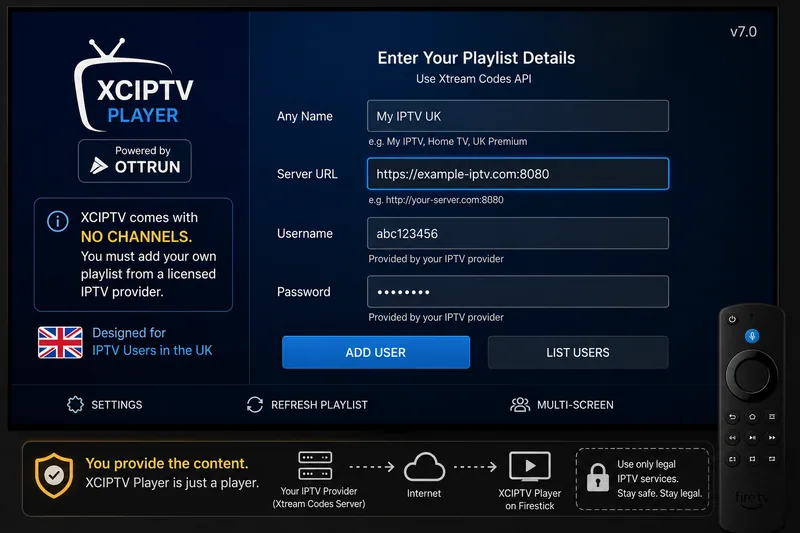
XCIPTV is an Android-based player published by OTTRUN. A Downloader code is only a shortcut to a web address and can change ownership or destination, so prefer a verified store/developer source and inspect the final page before downloading anything.
- Publisher shown
- OTTRUN
- Player engines
- Built-in players are documented in the official listing
- Includes channels
- No
- Reviewed
- 28 September 2026
What XCIPTV does
XCIPTV organises authorised live, catch-up and on-demand sources into a television interface. The official Google Play listing identifies OTTRUN and describes support for common playlist/API formats, EPG and built-in playback. Those features describe the player; they do not include a content package.
Choose the safest installation route
- Search the Amazon Appstore on the Firestick for the exact app and publisher.
- If it is unavailable, find the developer from an official listing rather than an advert or video description.
- If you use Downloader, type a verified full URL where possible.
- On the destination screen, check the domain, app name, version and publisher.
- Cancel when the page redirects unexpectedly or offers a modified build.
- After installation, turn off unnecessary install permissions for the browser/downloader app.
Why this guide does not publish a permanent code
Downloader codes resolve to URLs controlled outside the Firestick. The number does not reveal the destination, developer or file signature, and the destination can change after an article is published. A code that worked yesterday is not a durable trust signal today. Verification of the final source matters more than memorising a number.
Set up the account carefully
| Stage | What to confirm |
|---|---|
| Login | Correct URL, username, password and active term |
| First refresh | Categories finish loading before navigation |
| EPG | Programme times match the Fire TV time zone |
| Playback | Live, VOD, subtitles and audio on content you use |
| Organisation | Favourites and hidden groups survive a restart |
Use the built-in player before changing it
Test default playback first. If one format has audio or picture trouble, compare an alternative built-in engine where the app offers one. Change one setting at a time and use the same authorised stream for comparison. An external player may fix a codec issue, but it can also lose guide integration or parental controls.
Fix common XCIPTV problems
- Login fails: verify URL punctuation and account status.
- Categories are blank: wait for sync, refresh once and ask whether the account includes them.
- Guide is shifted: correct Fire TV time zone before adding an EPG offset.
- App freezes: restart, check storage and clear cache before clearing data.
- Only one channel fails: report the stream rather than reinstalling the whole app.
Frequently asked questions
Is XCIPTV itself a subscription?
No. The official listing describes a media player that requires compatible authorised account or playlist details.
What is the current XCIPTV Downloader code?
Codes are mutable shortcuts, so this guide does not present one as permanently safe. Verify a current destination from the developer source.
Can XCIPTV use M3U?
The official listing describes support for common M3U and API-style formats; the exact options can vary by version.
Why does video work but sound not work?
Try another known stream, check the selected audio track and compare the app’s alternative player engine before changing broader settings.
Sources and further reading
This guide was reviewed against current developer, manufacturer and UK public guidance on 28 September 2026.